








How to Update Your Fusion Splicer Software, Step by Step

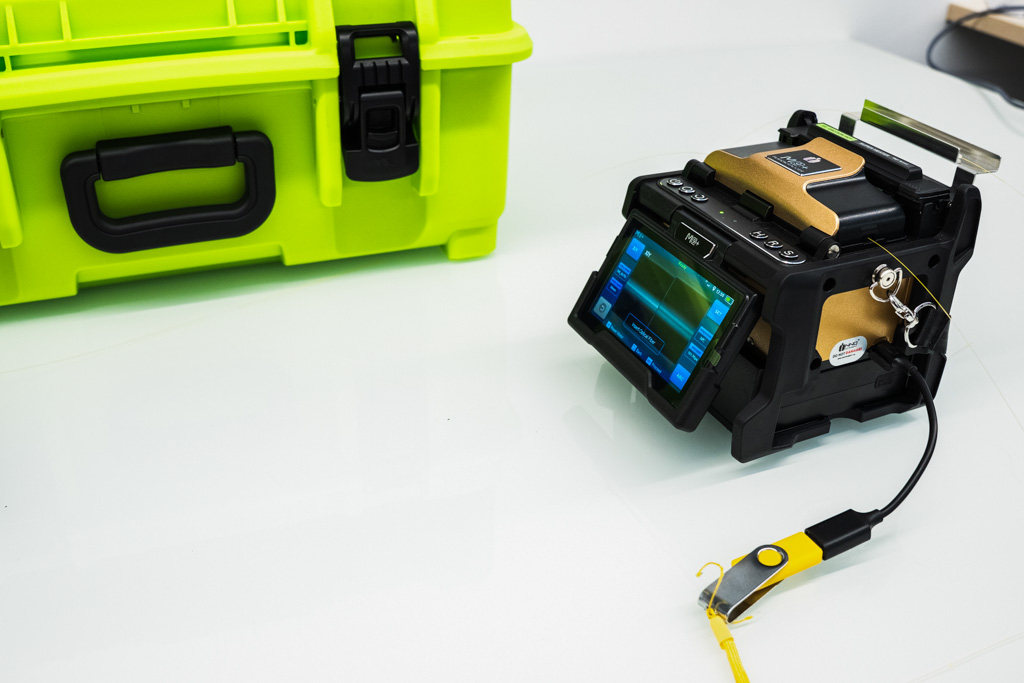
Knowing how to update fusion splicer software is a small skill that keeps your splicer accurate and reliable. They can add features, improve splice programmes and fix issues found in the field. The process for INNO splicers takes a few minutes and needs nothing more than a USB drive.
Before you start
- Power. Connect the splicer to mains power or make sure the battery is well charged. A splicer that switches off mid-update may need a service to recover.
- USB drive. Use a reliable drive with enough free space. A freshly formatted drive avoids problems with old files.
- Back up your data. Export splice records and save any custom splice programmes you rely on.
- Check the model. Make sure the file you download is for your exact splicer model.
Step 1. Download the update file
Go to our software updates page, find your splicer model and download the latest version.
Step 2. Copy the file to a USB drive
Save the file to the USB drive exactly as downloaded. Do not rename it or place it inside a folder unless the release notes say so. Wait until copying has finished before removing the drive.
Step 3. Connect the USB drive to the splicer
With the splicer switched on, insert the USB drive into its USB port.
Step 4. Start the update
Open [System Setting], select [Update Software] and confirm with [OK].
Step 5. Let the splicer finish and restart
The splicer installs the update automatically and restarts when it is done. Do not remove the USB drive or switch the splicer off during this time. Once it has restarted, check the software version in the system information screen, then run an arc calibration before you start splicing.
Troubleshooting a failed update
| Problem | What to try |
|---|---|
| The splicer does not see the file | Check the file is for your model, is not inside a folder and the drive is formatted as FAT32. |
| The update stops part way | Connect mains power, use a different USB drive and start again. |
| The splicer does not start after the update | Do not keep switching it on and off. Contact our support team. |
Managing updates across a fleet
If your company runs several splicers, keeping every unit on the same software version can be hard. View Pro Manager, INNO’s cloud platform for connected splicers, shows the software version of each device and highlights the ones that need updating. It also tracks consumables such as electrodes, so maintenance can be planned together. Our guide to when to replace fusion splicer electrodes covers that side of routine care.
Let us update it for you
Every splicer that comes through our UK service and repair centre is updated to the latest software as part of the service, with a 3-working-day turnaround for customers in the UK and Ireland. If an update has gone wrong, or you are not sure which version you need, contact our support team and we will respond quickly.
The current software for each INNO splicer and cleaver model is available on the Uptero software updates page. Download the file that matches your exact model.
Usually only a few minutes. The splicer installs the update automatically and restarts when it has finished.
Do not keep switching the splicer on and off. Check that the file matches your model and that the USB drive is formatted correctly, then try again with the splicer on mains power. If it still fails, contact our support team.
An update is not designed to erase your data, but it is good practice to back up splice records and any custom splice programmes before you start.